
How to Make a Hytale Server: Setup Guide for 2026
Start by getting a player into the world. Restart the server and make sure their progress is still there. Once login, saving and recovery work, you can add mods and prepare to open it to the group.
This guide follows VYKIX managed hosting and the panel steps in our setup documentation. If you maintain your own machine, follow the publisher’s Server Manual for the current runtime, files and launch procedure.
Choose managed hosting, a VPS or a physical server
Section titled “Choose managed hosting, a VPS or a physical server”| Hosting model | You manage | Provider supplies |
|---|---|---|
| Managed Hytale | Game authentication, files, mods and recovery checks | Host-OS maintenance, panel access and the listed allocation |
| Game VPS | OS, game installation, updates, firewall rules and data | Virtual allocation with root access |
| Bare metal | OS and the services you install | The complete physical machine in your order |
Decide how much of the machine you want to maintain, then compare the hardware and full bill. Check the billing interval and setup fees alongside any player-slot charges.
Use the hosting comparison to see who handles each job. The Hytale host checklist gives you tests to try in a demo or trial where the provider offers one.
If you choose a virtual server, leave room for the OS, game process, saves and updates within its allocation. The Game VPS sizing checks walk through that choice.
1. Open the panel and read the console
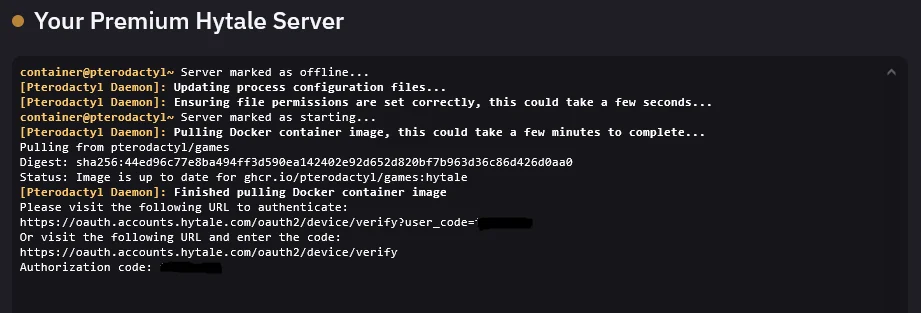
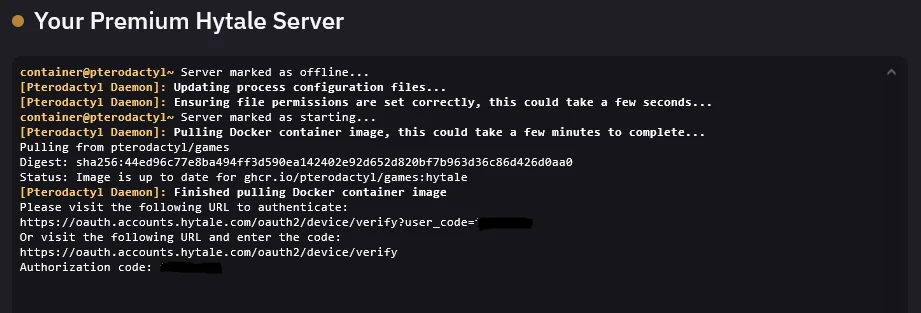
Section titled “1. Open the panel and read the console”Open your “Server Created” email for the panel address and login details. Select the service you ordered and read the console before using Start, Stop or Restart.
The screenshot above shows the downloader waiting for permission to fetch files. In this installation, approval starts the download and extraction. Game-server authentication comes afterward, before players can join.
Other installers may handle this differently. The publisher’s bootstrap route can pass its login to the installed server. Follow the stage shown in your console; you won’t necessarily see two login prompts.
2. Check game-server authentication
Section titled “2. Check game-server authentication”Use the Hytale account that owns your licence, and keep its password private.
Run /auth status in the console. If login is required, enter:
/auth login deviceOpen the verification page Hytale shows you and approve the active request before its deadline. Request a new code if it expires; a healthy server doesn’t need a restart just because the code timed out.
If the console offers several profiles, finish its selection prompt with /auth select <number>, using the displayed number for your intended profile. Confirm the result through /auth status.
Check the login status, then run /auth persistence to inspect credential storage. To use the publisher’s encrypted store, enter:
/auth persistence EncryptedConfirm that the command succeeded. It can keep credentials through restarts, though revoked credentials or a service failure can still interrupt login. See the publisher authentication guide and the panel examples in our VYKIX walkthrough. Remove codes, tokens and URLs containing codes before sharing logs.
3. Configure the server and the correct world
Section titled “3. Configure the server and the correct world”Back up the world and configuration files, stop the server and wait for saving to finish before editing configuration.
The server has its own config.json. Each world also has a config.json under universe/worlds/; our file-manager walkthrough shows where to find both. Edit the file that controls the setting you want. Changing the seed in the configuration won’t regenerate a world that already exists.
Save valid JSON, start the server and check the console for errors. Join using the address and assigned port in VXPanel. Hytale uses QUIC over UDP, and your hosting allocation may use a different port from the publisher’s default.
On a VPS or bare-metal server, check the OS firewall and upstream rules for that endpoint. Use the VxShield firewall guide for customer-managed rules. Keep unrelated admin ports closed or access-restricted.
4. Add compatible mods
Section titled “4. Add compatible mods”Check which Hytale build and dependencies the author supports. Place the supplied .jar or .zip package in mods/, following the publisher manual.
For small packages, use the panel’s file manager. For larger transfers, use the SFTP details on the Settings page; both methods are covered in our panel guide. Add one mod, check its startup messages and try it as a normal player. Test mods together before relying on that combination for your community.
Record the package source, version, supported build and dependencies in the Hytale change record. Test its intended feature with the saved world, then repeat after stop/start. Preserve the current files and error before reverting a failed package. Mod rollback and world recovery need separate checks.
5. Verify a backup and a restart
Section titled “5. Verify a backup and a restart”The paid Hytale plan includes three backup slots on the same server. Give your backup a name, wait for it to complete and download a copy. Use a separate instance to rehearse a restore if possible, because restoring the live world overwrites progress made since the backup.
Join as a player, restart, then check the required mods and access rules again. Keep a note of any player load you haven’t tried yet.
Use the connection guide to compare authentication and credential storage before and after a restart.
Ask the host which update procedure its installation supports. Hytale’s built-in updater needs the expected wrapper and folder layout for its apply-and-restart flow. Check that your installation uses them before changing files or adding an update script.
Host Your Hytale World on VYKIX
Section titled “Host Your Hytale World on VYKIX”VYKIX Hytale hosting runs on an overclocked i9-14900K host, with game-file access and VxShield included. Configure the world and test it with your players within the plan’s fair-use resource limits.
Hytale requires a paid plan. Check current DayZ and Rust trial availability on their hosting pages. For an existing world, ask us about best-effort migration and seven extra days on an eligible paid plan. We’ll agree on the files and timing first. Keep your own backup for the move.
Review Hytale plans, then work through the setup walkthrough with your console open.
For later maintenance, follow how to update a Hytale server. Find this guide and the VXPanel walkthrough in the Hytale tutorial hub.