
Backups and restores
Open Backups to create, restore or delete server copies. The list shows the newest copies first. Available actions depend on your service policy and the Agent’s backup configuration.
Customer downloads of game-server backups are coming soon to VXPanel and are not available yet. For an external recovery copy now, use Files and SFTP to export accessible server data, or ask support about data you cannot access.
Included backups share the physical server with the live game. A full-server or storage failure can affect both. Keep a current copy outside VYKIX of irreplaceable worlds, configuration, databases and mod data, and verify that copy.
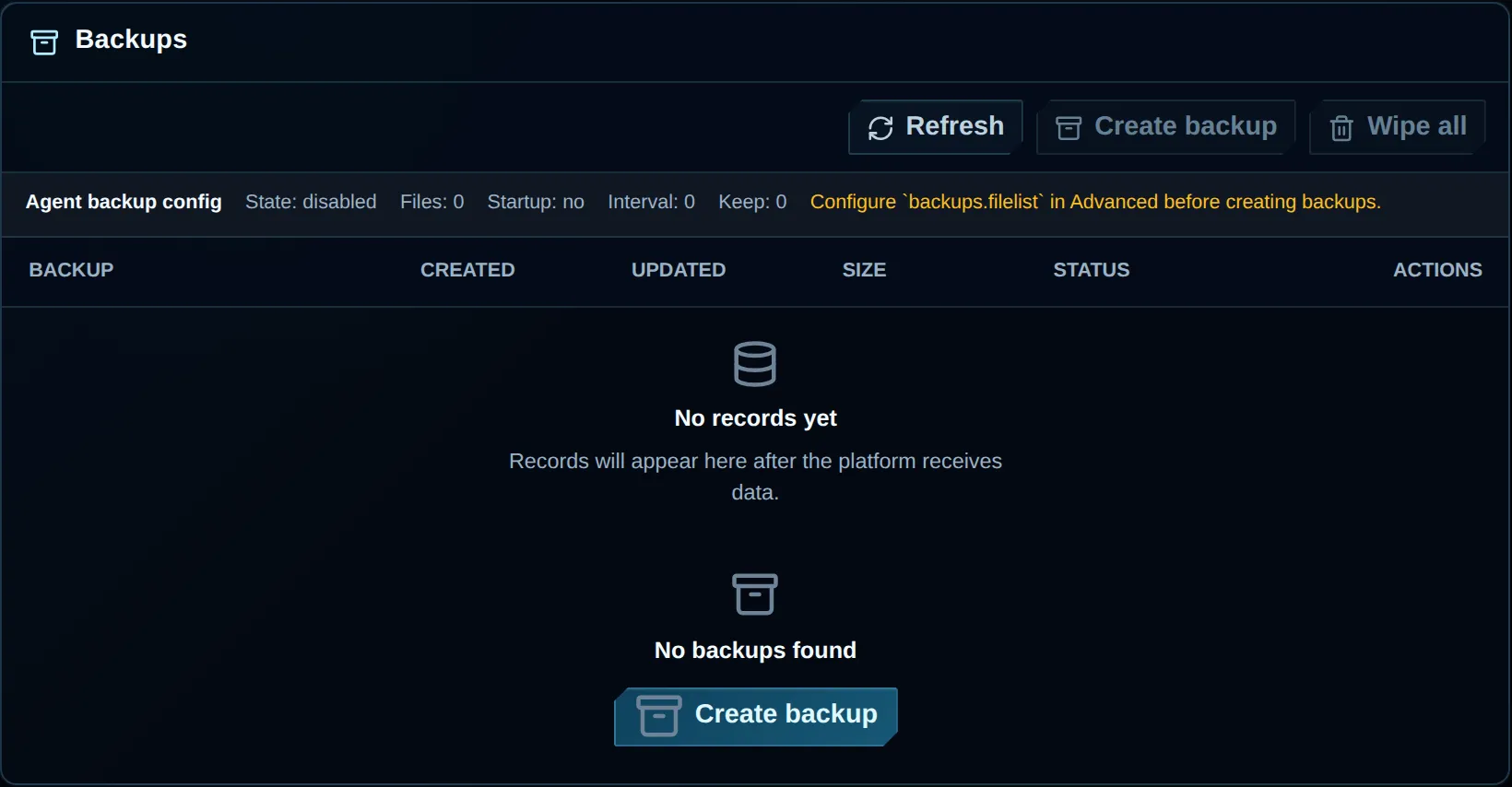
Creation is disabled in this example because no backup files are configured. Check the summary for readiness before relying on backups.
Check backup configuration
Section titled “Check backup configuration”Check the summary above the list for:
| Value | Meaning |
|---|---|
| State | Whether Agent backups run on an automatic schedule. Manual creation can be controlled by a separate policy. |
| Files | The count of configured backup paths. At least one path must be included to create a useful copy. |
| Startup | Whether a backup is configured to run when the Agent starts. |
| Interval | The stored automatic-backup interval. Keep the assigned value unless your service documentation specifies a different schedule. |
| Keep | The Agent’s stored retention value. Do not change it without knowing its unit and service policy. |
With Files at 0, Create backup is disabled. The panel directs you to set backups.filelist in Advanced settings.
Create a backup
Section titled “Create a backup”- Verify the selected server at the top of the page.
- Check that the summary lists at least one backup file.
- Press Create backup once.
- Let the request finish and the list reload.
- Check the new entry for its creation time and expected size.
The host may accept a request without adding a backup entry. If so, check backups.filelist, refresh the list and read the server logs before trying again.
Understand the backup list
Section titled “Understand the backup list”| Column | Meaning |
|---|---|
| Backup | The name or identifier set by the server host. |
| Created | The backup’s original creation time. |
| Updated | The last recorded change to contents or metadata. |
| Size | Archive size reported by the host. A dash indicates no size was returned. |
| Status | The backup state supplied by the host, when present. |
| Actions | The restore and delete operations your service permits. |
Refresh reloads the configuration summary and backup list together.
Restore a backup
Section titled “Restore a backup”A restore can replace the server’s current state.
- Notify players of downtime, then stop the server through Console.
- Take a final backup of the current state if possible.
- Identify the recovery copy by name, date and size.
- Choose Restore.
- Review the confirmation and choose Restore backup.
- Let the restore finish and the list reload.
- Start the service and check Console and the RPT/error logs.
Stop the server if the restored state is unexpected, before trying another restore. Restoring while DayZ runs can cause conflicting writes, especially across repeated attempts.
Delete backups
Section titled “Delete backups”- Delete removes the backup you selected.
- Wipe all deletes the server’s entire listed backup collection.
You must confirm either action, and the panel cannot undo it. Wipe all deletes backups; it does not wipe the live game world.
Disabled controls
Section titled “Disabled controls”| Situation | Meaning |
|---|---|
Create backup disabled and Files is 0 |
No paths have been selected for backup. |
| Create/restore/delete disabled with an availability message | Your hosting service does not enable that operation. |
| All actions disabled temporarily | The page is loading or a backup operation is in progress. |
| Wipe all disabled | No backups are listed, or deletion is not available. |
If your service does not allow an operation, ask support rather than changing unrelated settings.