
VxShield Firewall Guide
VxShield provides firewall rules and DDoS protection on the VYKIX network. Each rule determines which traffic can reach a server and which filter inspects it.
Follow this guide when you manage VxShield on a VYKIX VPS or dedicated server. VYKIX staff handle protection for hosted game servers.
Ports start closed. To expose a service to the internet, add its port in VxShield with the matching protocol and filter.
Before You Start
Section titled “Before You Start”Record these details for the service before adding or editing a filter.
- Server: The IP address assigned to the VPS or dedicated server.
- Service: The application you need to reach, such as SSH, RDP, DayZ or Rust.
- Port: The public port used by clients and tools.
- Protocol: The service’s transport protocol: TCP or UDP.
- Custom configuration: Any game, query, RCON or app ports you have changed in the server configuration.
Accessing VxShield
Section titled “Accessing VxShield”Go to the VxShield dashboard. Choose the server or protected IP address whose rules you need to edit.
When VxShield prompts for a login, select Sign in with WHMCS. Use your VYKIX customer account from portal.vykix.com, the same account you use to manage billing and services.
 Sign in to VxShield with your customer account.
On the dashboard, choose the protected IP from the left side. The rule list shows exposed ports; Add rule lets you allow another service.
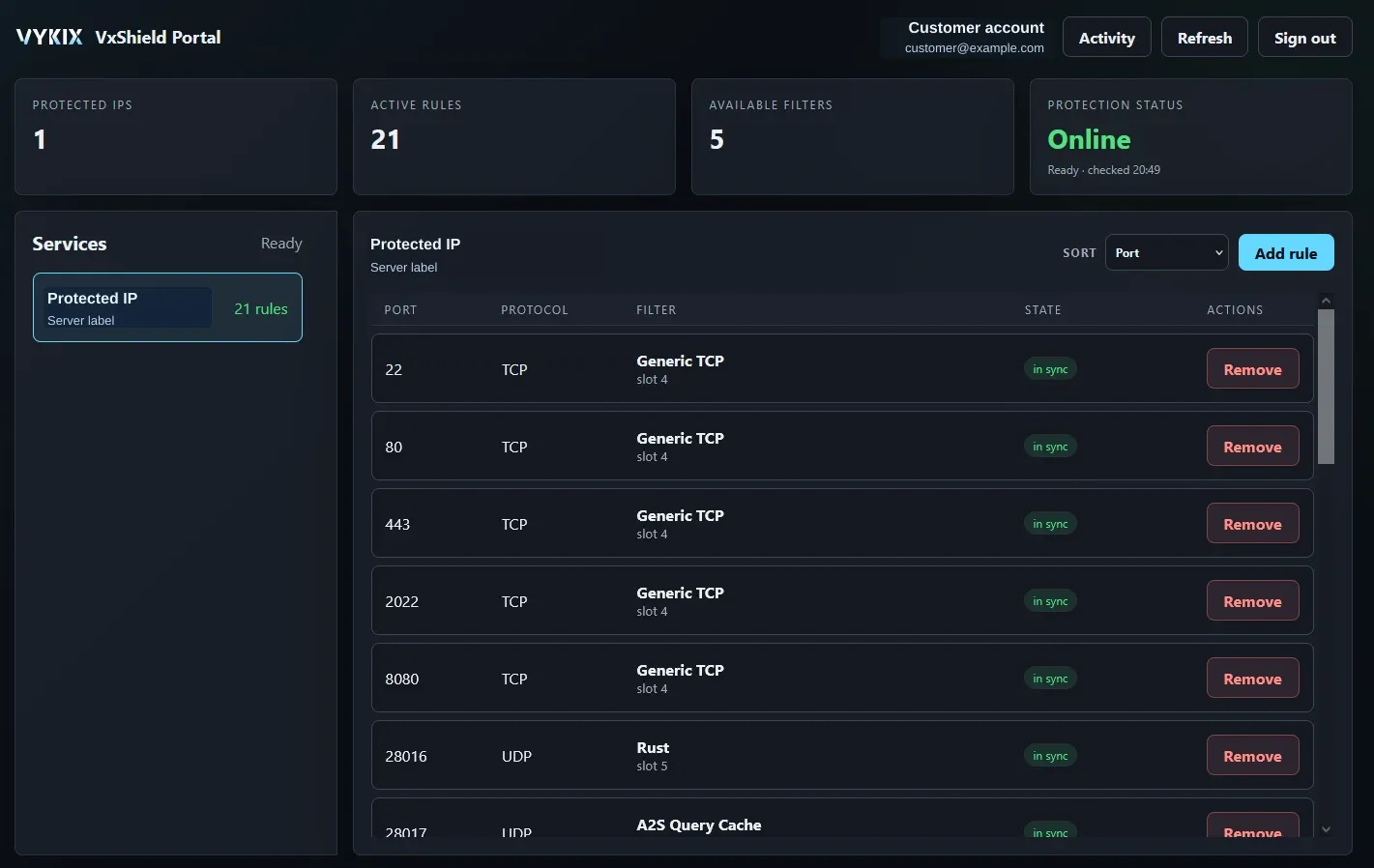 Select an IP to view and manage its rules.
Add one rule for each service that needs public access, using that service’s port and the appropriate protection filter.
Core Concepts
Section titled “Core Concepts”Use these fields for remote access, game traffic, RCON and query-port rules.
| Concept | What it means |
|---|---|
| Port | The port clients use to reach the public service. |
| Protocol | TCP or UDP, as required by the application. |
| Filter | The protection profile that inspects this type of traffic. |
Basic Setup Flow
Section titled “Basic Setup Flow”Repeat these steps for each service that needs public access.
- Check that the service is running.
- Find the service’s public port and protocol.
- Choose the service’s server or protected IP in VxShield.
- Enter the port and its protocol.
- Choose a filter for that traffic type.
- Apply the rule, then test the service from an outside connection.
Choose Single to enter one custom port and select its filter.
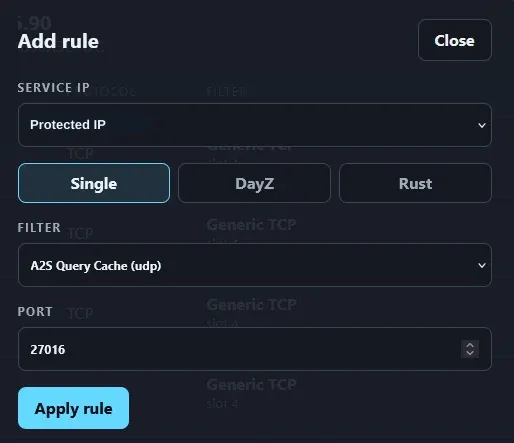 Enter a port and filter in Single mode.
Choose DayZ to add game, query and public RCON rules together. If you do not use RCON, choose Single and add the services you need.
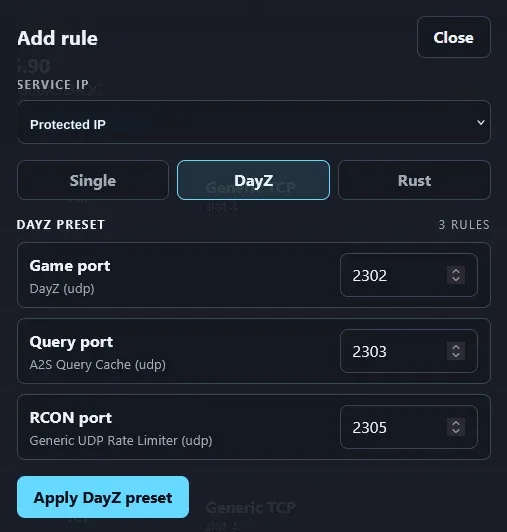 Set the game, query and RCON ports in the DayZ preset.
The Rust preset creates game, query, RCON and Rust+ app rules in one dialog. Enter the ports from your server configuration.
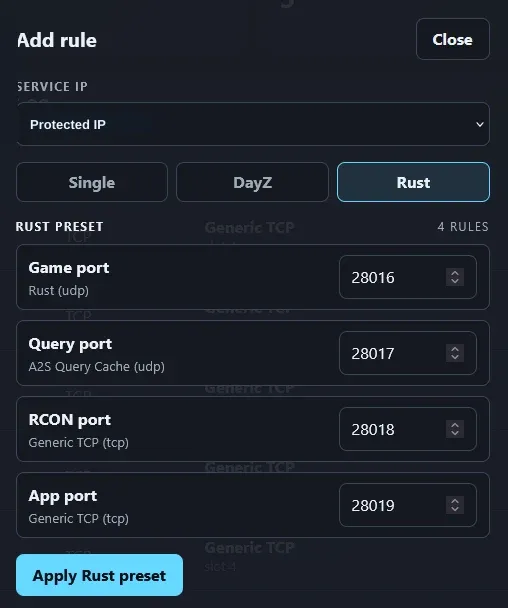 Match the Rust preset’s values to your server ports.
SSH and RDP Protection
Section titled “SSH and RDP Protection”SSH and RDP provide remote administration over TCP. Add their ports in VxShield using Generic TCP.
| Service | Default port | Protocol | Suggested filter |
|---|---|---|---|
| SSH | 22 | TCP | Generic TCP |
| RDP | 3389 | TCP | Generic TCP |
To configure these rules:
- Enter the SSH or RDP port in a VxShield rule.
- Choose Generic TCP as the filter.
- Apply the rule to save it.
- Connect with your SSH or Remote Desktop client to test access.
DayZ Standalone Protection
Section titled “DayZ Standalone Protection”Create separate rules for DayZ game traffic, Steam queries and RCON. For each public service you need, use its configured port and the matching protocol and filter.
| Purpose | Example port | Protocol | Suggested filter |
|---|---|---|---|
| Game traffic | 2302 | UDP | DayZ |
| Steam query | 2303 or 27016 | UDP | A2S Query Cache |
| RCON | 2305 | UDP | Generic UDP Rate Limiter |
Enter your server’s configured ports. Choose the query port it uses; 2303 and 27016 are examples of alternatives, not two required openings. Leave unused or disabled public RCON closed, and use Single for the game and query rules.
To configure these rules:
- Set the game-port rule to UDP with the DayZ filter.
- Set the Steam query rule to UDP with A2S Query Cache.
- If you need enabled public RCON, use UDP and Generic UDP Rate Limiter for its port.
- From an outside connection, join by address and check the server-browser query. Also test your RCON client if public RCON is enabled.
Follow DayZ DDoS protection for the preset walkthrough and connection tests.
Rust Protection
Section titled “Rust Protection”Rust game traffic, queries, RCON and the Rust+ app each use a separate port. The table gives common examples with game port 28015 and RCON port 28016. Read your server configuration before you create the rules.
| Purpose | Common port | Protocol | Suggested filter |
|---|---|---|---|
| Game traffic | 28015 | UDP | Rust |
| Query traffic | 28017 | UDP | A2S Query Cache |
| RCON | 28016 | TCP | Generic TCP |
| Rust+ app | 28082 | TCP | Generic TCP |
Replace the example ports with any custom ports in your Rust configuration.
To configure these rules:
- Use UDP and the Rust filter for the game port.
- Use UDP and A2S Query Cache for the query port.
- Use TCP and Generic TCP for the RCON port.
- If you use Rust+, give its app port a TCP rule with Generic TCP.
- Test player connections, the server-browser listing and RCON. Check Rust+ as well if enabled.
Troubleshooting
Section titled “Troubleshooting”If the new rule leaves a service unreachable, work through these checks before selecting another filter.
- Check which ports the game server is listening on.
- Compare the rule’s protocol with the one the service uses.
- Keep game, query and RCON port values in their own rules.
- Match custom ports in VxShield to those in the game server configuration.
- Allow the same port through the operating-system firewall.
- Test from outside the server as well as from localhost.
When to Contact Support
Section titled “When to Contact Support”Ask VYKIX support to investigate when the port, protocol and filter match but traffic still fails to reach the server.
Send these details with your request:
- Server IP address
- Service or game name
- Port and protocol
- Filter selected in VxShield
- Whether a connection made on the server itself works
- The error shown by your game client, RCON tool or remote access client