
How to use Remote Desktop Connection
Use the Remote Desktop Connection (RDP) client built into Windows to open your server’s desktop over the network. From that desktop you can install software, edit configuration files and manage processes, as you would with a keyboard and monitor connected to the machine.
The remote machine, called the host, needs Remote Desktop enabled. VYKIX Windows servers should arrive with it enabled.
On your own computer, called the client, search the Start menu for “Remote Desktop Connection” and open the application.
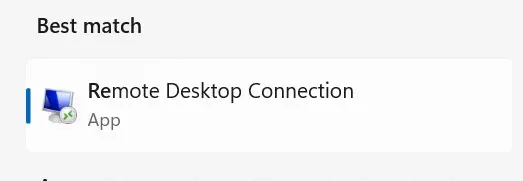 RDP Search.
Fill in the “Computer” field with the host’s IP address.
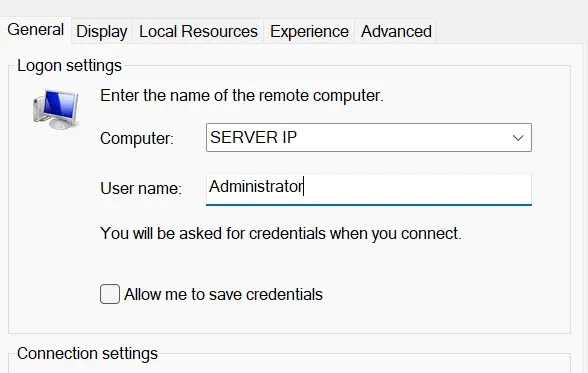 RDP Connection Settings.
Select “Connect”, then provide the host’s login credentials when asked.
After login, the remote desktop gives you access to the host’s files and applications.
Close the Remote Desktop Connection window with the “X” at the upper right to disconnect. The server and its running applications continue after you close the window.
For a timeout on a VPS or dedicated server, check that VxShield permits TCP port 3389. Follow the SSH and RDP rules in the VxShield Firewall Guide.