
How to create a WinMTR report
Download WinMTR from SourceForge to investigate lag or packet loss on Windows. This free tool combines ping and traceroute, reporting loss and latency at each hop between your computer and the server. Send the capture to our team so we can compare the hops along that route.
Create the report
Section titled “Create the report”- Install the WinMTR download on your computer.
- Launch WinMTR.
- Enter the server’s IP address or hostname in Host.
- Click Start to run the trace.
- Keep the trace running for at least 5 minutes or until you have 100 samples.
- Choose Copy Text to clipboard once the test finishes.
- Save the copied results in a text file and send that file to our team.
For a complete report, use the correct IP address or hostname and make sure the server is online with ICMP enabled.
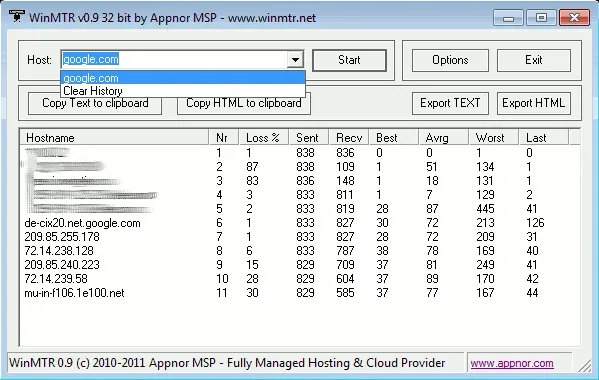 Copy the results after the WinMTR trace completes.