
Files and SFTP
Browse the server directory in File Manager. For a desktop transfer client, its SFTP tab creates a temporary login.
Choose File Manager for a few files or a quick edit, and SFTP for folder trees or repeated transfers. Both restrict access to your assigned server, and your service’s file policy sets the operations you can use.
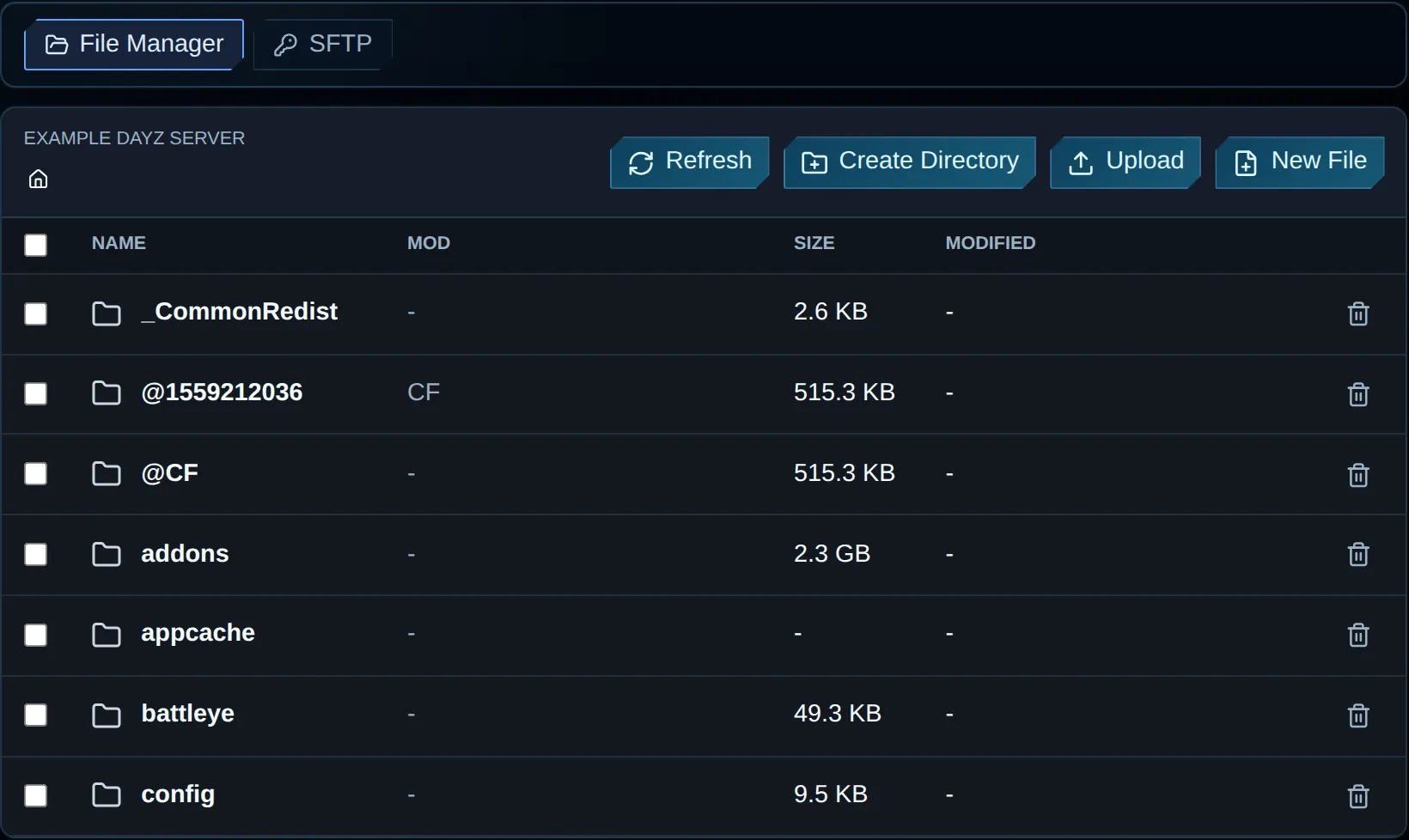
Navigate with the path controls and folder rows. Your policy determines whether creation, upload and deletion controls appear.
Choose a file access method
Section titled “Choose a file access method”| Method | Best for | Trade-offs |
|---|---|---|
| File Manager | Browser access for edits, single-file uploads/downloads and ZIP work. | Larger transfers are less convenient, and operation or size limits may apply. |
| Temporary SFTP | Multi-file transfers with FileZilla, WinSCP, Cyberduck or another SFTP client. | A client is required. Protect the one-hour password, which is displayed once. |
Navigate in File Manager
Section titled “Navigate in File Manager”- Open a folder by selecting its name.
- Return to a parent folder with the breadcrumb trail or back control.
- Reload with Refresh after changes through SFTP or a different session.
- Select row checkboxes to apply a supported bulk action to several entries.
Folder sizes are calculated from the file tree returned by the host. If a size is blank or slow to appear, open the folder to check its contents; don’t assume it is empty.
Create and upload
Section titled “Create and upload”| Control | What it does |
|---|---|
| Create Directory | Adds a directory within the current path. |
| New file | Opens the editor after creating an empty file. |
| Upload | Transfers the local file you choose to the current directory. |
Do not include path separators in file names. Your service’s file policy limits upload size, request frequency and allowed extensions. The blocked upload file types have not been confirmed. Read the rejection message and ask support about that file type rather than renaming it to bypass a restriction.
Edit a text file
Section titled “Edit a text file”- Open the editor by selecting the file name.
- Check the detected editor language:
JSON,XML,CFGorTXT. - Edit the required content.
- If available for JSON or XML, run Format and Validate before saving.
- Press Save.
- Wait until success is confirmed before moving to another file.
Saving retains the file’s existing line endings. A truncated preview cannot be edited, because saving an incomplete preview would overwrite the full file.
Leaving a page with unsaved edits prompts you to discard them. Format adjusts layout and Validate checks structure; neither changes the server file until you press Save.
Valid JSON or XML can still contain a wrong mission path, unknown item class or unregistered economy file. Follow the DayZ configuration checks and inspect the next startup log after applying an edit.
Move and copy files
Section titled “Move and copy files”File Manager supports moving and copying files within your server. Check the destination before confirming and refresh both folders afterwards. A move changes where the file lives; a copy leaves the original in place. Stop the server before moving or copying active persistence data.
Download, archive, extract, and delete
Section titled “Download, archive, extract, and delete”| Action | Meaning |
|---|---|
| Download | Saves one permitted file through your browser. |
| Archive | Packs the selected files or folders into a ZIP. |
| Extract | Unpacks a .zip into the server filesystem. |
| Delete | Removes the selected file or directory permanently after you confirm. |
Archive and extract operations support ZIP only. File policy, size restrictions and request-rate limits can block an operation.
Inspect the archive’s top-level folder before extraction. Without the folder you expect, files may unpack into the current directory. Before deleting a directory, back up or download anything you may need.
To edit DayZ loot or populations in bulk, download the mission ZIP and open it in the DayZ economy editor. Processing stays in your browser, and the export contains changed files plus a manifest. Review paths, stop the server and back up its active mission before replacing anything. This export is not a full mission backup; the sample walkthrough explains what it contains.
Generate temporary SFTP access
Section titled “Generate temporary SFTP access”
SFTP does not display a permanent password. Press Generate when you can store the one-time connection details securely.
- Go to File Manager and open SFTP.
- Press Generate.
- Store the displayed Host, Port, Username, Password and, when present, Host key.
- Create an SFTP connection in your client, rather than FTP or FTPS.
- Check the host-key fingerprint when the client prompts you.
- Use the password shown at generation.
Launch SFTP client can open an application registered for sftp:// links. Enter the connection details by hand if the browser lacks a compatible handler.
You can have one active temporary session, lasting one hour. Its password appears at creation only. Generate a new session if you lose the password.
Background transfers and connection limits
Section titled “Background transfers and connection limits”WinSCP opens a separate connection for each background operation. Check your service’s assigned connection limit. For example, a limit of five concurrent connections with one used for browsing leaves up to four for transfers if no other client shares the credentials.
If WinSCP browsing succeeds but background transfers keep prompting for a password, check expiry and the connection limit. Close unused connections and reduce parallel transfers. If prompts persist, try a foreground transfer. Re-entering the same password does not release a connection slot.
Existing credentials retain the limit assigned when created. To receive a changed limit, finish active transfers, select Revoke, then Generate. Reconnect using the new username and password.
Revoke an SFTP session
Section titled “Revoke an SFTP session”Recent sessions appear in the SFTP tab with state and expiry. Finish transfers, close the client connections and select Revoke, then check the displayed session state. Revoking access does not reverse file changes made during the session. Confirm with support whether revocation or expiry also closes connections that were already authenticated.
Troubleshooting
Section titled “Troubleshooting”| Problem | Check |
|---|---|
| A file will not open | Size, binary content, access policy or a path outside the allowed root may prevent opening. If permitted, download it and use a suitable local tool. |
| Save is disabled | Check for a truncated/read-only file, a policy that blocks editing or an unchanged draft. |
| Upload or download is rejected | Check file size and extension. Wait until the operation window resets before retrying. |
| SFTP authentication fails | Select SFTP and use the shown port, username and newest unexpired password. |
| Browsing works but background transfers fail | Close extra connections, reduce concurrent transfers or transfer in the foreground. Check expiry; finish active transfers before regenerating older credentials. |
| Host-key warning changes unexpectedly | Stop the connection and contact support before approving a new fingerprint. |
| Changes do not appear in File Manager | After the transfer finishes, select Refresh or reopen the directory. |