How to Make a Hytale Server: Setup Guide for 2026
Make a Hytale server with working login, the right world configuration and compatible mods. Follow the VYKIX panel steps and test recovery.
On this page
Get one player into the world, restart it and check that their progress survived. That is a useful first milestone when you make a Hytale server. Mods and a public launch can wait until you have working authentication and a recoverable world.
These steps follow VYKIX managed hosting and our documented panel captures. If you run the machine yourself, use the publisher’s Server Manual for the current runtime, server files and launch procedure.
Choose managed hosting, a VPS or a physical server
| Hosting model | You manage | Provider supplies |
|---|---|---|
| Managed Hytale | Game authentication, files, mods and recovery checks | Host-OS maintenance, panel access and the listed allocation |
| Game VPS | OS, game installation, updates, firewall rules and data | Virtual allocation with root access |
| Bare metal | OS and the services you install | The complete physical machine in your order |
Check the product, billing interval, setup fees and total before payment. No-per-slot pricing does not remove CPU limits or make a larger product cost the same. Hardware and availability belong to the selected listing.
The hosting comparison explains the responsibility split. Use the Hytale host checklist to prepare a trial or demonstration where available.
1. Open the panel and read the console
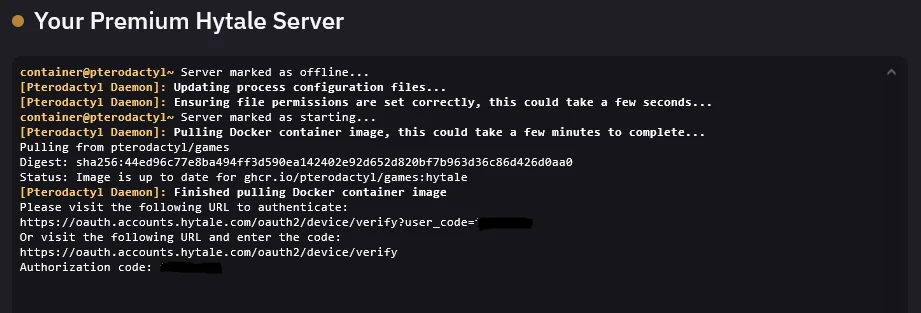
Our setup guide starts with the “Server Created” email, which supplies the panel address and login details. Open that panel, select the correct service and read its console before pressing Start, Stop or Restart.
The screenshot above captures the downloader asking permission to fetch files. In our walkthrough, successful authorization leads to a download and extraction before the running server’s authentication step. A download-complete message alone does not tell you that players can join.
Installers differ. The publisher’s bootstrap route can carry its login into the installed server. Follow the stage shown by your console instead of expecting two prompts on every installation.
2. Check game-server authentication
Use the Hytale account that owns your licence. Keep its password to yourself.
Check /auth status in the server console. If the server needs login, run:
/auth login deviceApprove the active request at the verification page displayed by Hytale. Use the expiry shown there. An expired request needs a fresh code, not a restart of an otherwise healthy server.
Check status again and inspect storage with /auth persistence. To select the publisher’s documented encrypted credential store:
/auth persistence EncryptedRead the result before continuing. The store can preserve credentials across restarts; revocation or service failures can still interrupt login. The publisher authentication guide covers supported flows, and our VYKIX walkthrough shows the panel commands. Remove codes, tokens and code-bearing URLs before sharing logs.
3. Configure the server and the correct world
Make a backup, stop the server and wait for saving to finish. Then edit the file that owns the setting.
The server has a config.json; each world has another config.json under universe/worlds/. Our file-manager walkthrough distinguishes these locations. Changing a configured seed does not regenerate a world that exists.
Keep valid JSON, start the server and read any errors. Join at the address and assigned port shown in VXPanel. Hytale uses QUIC over UDP; a publisher default is not permission to replace your allocated port.
On a VPS or bare-metal machine, match both OS and upstream firewall rules. The VxShield firewall guide covers customer-managed rules. Opening unrelated admin ports will not repair the game endpoint.
4. Add compatible mods
Check the author’s supported Hytale build and dependencies. Upload the supplied .jar or .zip package to mods/, as described in the publisher manual.
Our panel guide documents web uploads and the Settings-page SFTP details. Use the file manager for small packages and SFTP for a larger transfer. Install one change, read its startup messages and test it as a normal player before adding the next. Access to the folder cannot establish that two mods work together.
5. Verify a backup and a restart
The listed paid Hytale plan has three same-server backup slots. Name the backup, wait for completion and download a copy outside the server. Rehearse a restore on a separate instance where possible, since restoring the live files can discard later progress.
Check a player join and restart, then verify the required mods and access rules. Record any population or workload you have not tested.
Before future updates, agree on the host’s supported procedure. Hytale now documents a built-in updater whose apply-and-restart flow depends on the expected wrapper and folder layout. Do not assume a managed installation uses that layout, or replace its files with a guessed update script.
Order and migration terms
The paid Hytale listing names an overclocked i9-14900K host build, game-file access and VxShield protection. Resource use is subject to fair use. Test your Hytale world; a clock figure from a different game cannot answer its capacity question.
The advertised 48-hour VYKIX trials cover DayZ and Rust, not Hytale. For a move, confirm eligibility and technical scope before scheduling best-effort migration. Keep independent backups. Seven promotional days apply to eligible paid switcher orders under the offer’s terms.
Review Hytale plans and use the setup walkthrough alongside the console.
Game-aware DDoS protection for your server.
Run your game server with VxShield included. Ask about free migration and seven days free for eligible customers switching hosts. VYKIX confirms the scope, timing, and terms before the move.
Continue with